
eSIM for Travel: How Travel eSIMs Work for RV Trips to Canada, Mexico and Beyond
Crossing a border used to mean hunting for a SIM card shop, fiddling with a tiny tray, or paying steep roaming fees. Today, an eSIM for travel makes staying connected much simpler. A travel eSIM is a digital data plan you download to your phone, often in minutes, while your home number stays active. For RVers heading north to Canada, south to Mexico, or overseas between road trips, it can be the easiest way to keep maps, messages and work online. This guide explains how eSIMs work, how to check that your phone is ready, how to set up a travel eSIM next to your home line, and how to plan data for a trip.
Last reviewed and updated: September 30, 2026. Written by Jeremy Jarvis.
Key takeaways
- An eSIM is a digital SIM; you can add a travel eSIM for data without swapping a physical card.
- To use another carrier’s travel eSIM, your phone must be unlocked; Apple says to look for No SIM Restrictions in Settings.
- Many phones can keep your home line active while a travel eSIM handles data.
- Compare your carrier’s roaming pass with a travel eSIM before you cross the border.
The setup details below come from Apple’s and Google’s official support pages. However, plans, prices and coverage change often. So always confirm details with your carrier and your eSIM provider before you leave.
What is an eSIM?
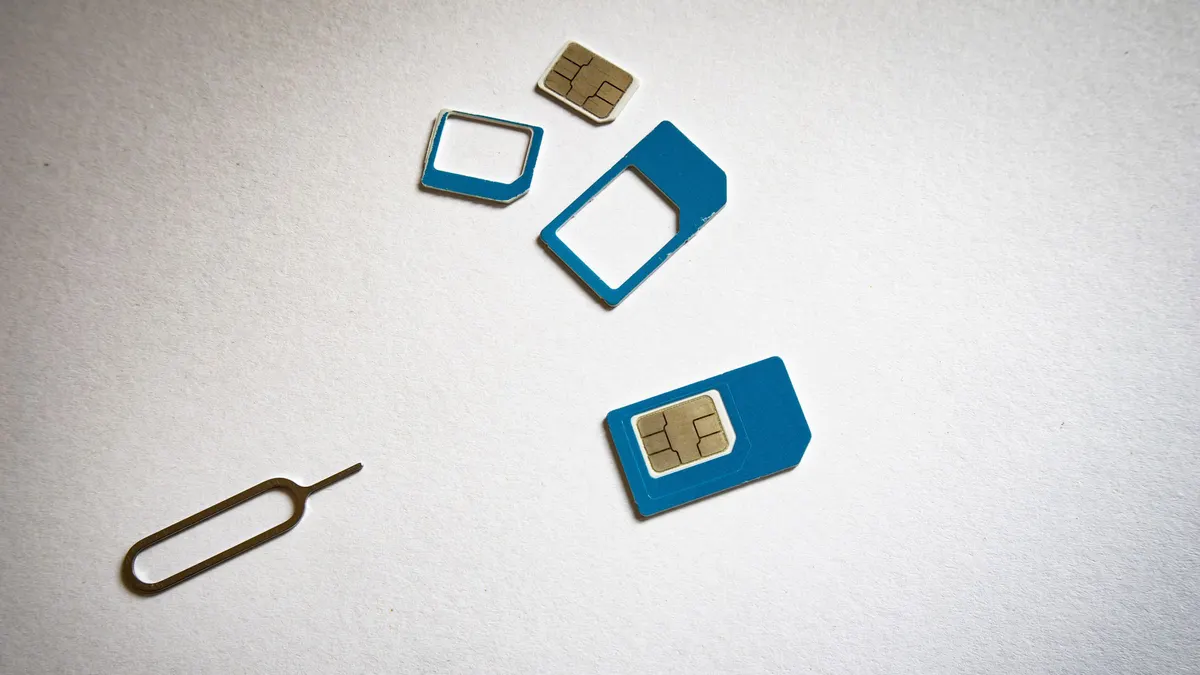
An eSIM is an embedded SIM: a chip built into your phone that can hold one or more carrier profiles. Instead of inserting a plastic SIM card, you download a profile, usually by scanning a QR code or using a carrier app. Apple notes that carriers provide steps to activate an eSIM digitally, like with a QR code or a carrier app. Once installed, the eSIM works just like a physical SIM for calls, texts or data, depending on the plan.
Because eSIMs are digital, you can store more than one and switch between them. That is what makes them so useful for travel. You can keep your home line for calls and texts, and add a separate data plan for the place you are visiting.
Benefits of an eSIM for travel
Apple lists several benefits of traveling with an eSIM. First, it is more secure than a physical SIM, because it cannot be removed if your phone is lost or stolen. Second, you do not need to obtain, carry or swap physical SIM cards, which can be lost, or wait for them to arrive by mail. Third, supported phones can have two eSIMs active at once. Apple gives the example of one eSIM for your home number and another for the place you are visiting.
Free download: The Full-Time RV Launch Checklist
Our 16-page planner: a 12-month countdown, inspection checklist, budget and weights worksheets and a maintenance calendar. Free and printable.
For road travelers, there are practical benefits too. You can buy and install a travel eSIM before you leave home, so you have data the moment you cross the border. In addition, you avoid hunting for a phone shop in a new town, which is especially handy when you are driving a big rig with limited parking.
Phone requirements for a travel eSIM
Not every phone supports eSIM, so check yours first. According to Apple, you need an iPhone XS, iPhone XS Max, iPhone XR or later, a carrier or worldwide service provider that supports eSIM, and a Wi-Fi network or hotspot for setup in most cases. Apple also notes that if your iPhone has a SIM tray, you can use both a physical SIM and an eSIM while traveling.
On Android, support varies by maker and model. Google’s Pixel help page says Pixel 3a and later phones can use two SIMs, one physical and one eSIM, and that Pixel 7 and later can use two eSIM profiles at once, depending on the carrier. Google also notes that some newer Pixel models in the US are eSIM-only. For other Android phones, check the maker’s support pages, such as Samsung’s eSIM help.
Check that your phone is unlocked
This is the step travelers most often miss. To use another carrier’s travel eSIM, your phone must be unlocked. Apple is clear: to use your iPhone with another carrier when traveling internationally, your iPhone cannot be locked to a carrier. To check, Apple says to open Settings; if your iPhone is unlocked, “No SIM Restrictions” appears next to Carrier Lock.
If your phone is locked, contact your carrier well before your trip. Many carriers unlock phones once they are paid off and the account is in good standing, but the process can take time. Alternatively, you can use your own carrier’s international roaming options, which do not require an unlocked phone.

Your options for data abroad
An eSIM for travel is one of several ways to get data in another country. The table below compares the main options.
| Option | How it works | Strengths | Trade-offs |
|---|---|---|---|
| Carrier roaming pass | Add-on from your home carrier | No setup; works on a locked phone; keeps your number | Can be pricey for heavy data; speeds may be limited |
| Plan that includes roaming | Some home plans include certain countries | Nothing to buy | Check data limits and speeds abroad |
| Travel eSIM from a worldwide provider | Data plan downloaded before or during the trip | Easy setup; often good value for data | Phone must be unlocked; usually data-only |
| Local carrier eSIM or SIM | Plan from a carrier in the destination | Local rates and coverage | May require ID or in-person setup |
| Wi-Fi only | Use campground, cafe or hotel Wi-Fi | No extra cost | Unreliable on the road |
Apple notes that your carrier might offer affordable travel passes or plans that you can purchase ahead of time, and that international roaming with an eSIM works the same as with a physical SIM. Therefore, start by checking what your carrier offers for your destination, then compare it with travel eSIM plans for the amount of data you expect to use.
How to set up a travel eSIM
The exact steps depend on your phone and provider, but the process usually looks like this:
- Confirm your phone supports eSIM and is unlocked.
- Choose a plan for your destination, data amount and trip length.
- Install the eSIM before you leave, while you have reliable Wi-Fi.
- Label the lines clearly, for example “Home” and “Travel”.
- Keep the travel line off until you arrive, if your provider’s plan starts on first use.
- Turn on the travel line and data roaming for it when you arrive.
- Set the travel eSIM as your data line and confirm it connects.
Apple notes that you usually need Wi-Fi to set up an eSIM on iPhone, although some eSIM-only models in some regions can activate without Wi-Fi. So installing at home or at a campground with good Wi-Fi is the safest approach.
Using your home line and a travel eSIM together
One of the best features of an eSIM for travel is keeping your home number reachable. Apple explains that while abroad, you can use a travel eSIM by itself or as a secondary line alongside your home line. If you keep both lines on, the capabilities of your primary line continue to work, and the travel eSIM is used for data. Apple also notes you can manually choose which line to use for data in Settings.
Even if you turn off your home line to avoid roaming charges, Apple says FaceTime and iMessage continue to work on your home line, and you can still use apps for internet calls and messages. However, be careful: if your home line stays on and data roaming is enabled for it, you could be charged by your home carrier. Check your carrier’s roaming terms and turn off data roaming on the home line if you want to avoid fees.
Planning how much data you need
Travel eSIM plans are usually sold by data amount and number of days. To choose well, estimate your daily use. Maps and messages use little data. Video calls, streaming and photo backups use far more. Remote workers should plan carefully, since a few hours of video meetings can use a large share of a small plan. Our Remote-Work Data Usage Calculator helps you estimate how much data your work and entertainment need.
To stretch your data, download offline maps before you leave, set photo and app updates to Wi-Fi only, and lower streaming quality. In addition, use campground Wi-Fi for large downloads when it is reliable. If you run out, most providers let you top up from their app.
Using a travel eSIM on RV trips to Canada and Mexico
For US-based RVers, Canada and Mexico are the most common international road trips. Before you go, check whether your current plan already includes those countries; many US plans include some North American roaming, though data speeds and limits vary. If your plan does not, or if you need more high-speed data, a travel eSIM for travel in Canada or Mexico can be a good alternative.
Coverage on the road also matters. Rural highways in both countries can have long stretches with weak or no cell service, just like in the US. A cell booster can help in fringe areas; our RV cell signal booster guide explains how. For remote stretches, satellite internet may be the only option; see our guide to Starlink for RV. If you are planning a cross-border trip, our Campgrounds and Routes hub helps with the broader planning.
Hotspots and routers abroad
Many RVers share their phone’s data with laptops and tablets through a personal hotspot. Before you buy a travel eSIM plan, check whether it allows hotspot use, since some plans restrict it. Alternatively, some travel routers and mobile hotspots accept eSIMs or SIM cards, which lets you keep your phone free and place the router where signal is strongest. For more on RV connectivity setups, visit our RV Internet hub.
Troubleshooting connection problems
If your travel eSIM does not connect, try these steps in order. First, confirm the travel line is turned on and set as the data line. Second, make sure data roaming is enabled for the travel line, since many travel eSIMs technically roam on local networks. Third, toggle airplane mode off and on, or restart the phone. Fourth, check that the plan has started and has data remaining in the provider’s app. Finally, contact the provider’s support. Apple also suggests that if you do not get a notification that a travel eSIM has been turned off when you return home, you should make sure your primary line is turned on.
Calls and texts while you are abroad
Most travel eSIM plans are data-only. That means they give you internet access but not a local phone number for regular calls and texts. For many travelers, that is fine, because messaging apps and internet calling cover most needs. As Apple notes, you can continue to use FaceTime, iMessage and other apps to make internet calls or send messages while traveling on your home line. Similarly, many other messaging and calling apps work over any data connection.
However, there are situations where you may still want your home number active. For example, banks and other services often send verification codes by text message. If your home line is turned off, those codes may not arrive. Therefore, many travelers keep the home line on for calls and texts while turning off data roaming for it, so the travel eSIM handles data. Before you leave, check your carrier’s charges for incoming calls and texts abroad, since they vary. If you expect to need a local number, for instance to book campgrounds or tours by phone, look for a local plan that includes calling.
Security and privacy on the road
Apple points out that an eSIM is more secure than a physical SIM, since it cannot be removed if your phone is lost or stolen. Even so, a few habits help keep your data safe while traveling. First, turn on a passcode and remote tracking for your phone before you leave. Second, be cautious with public Wi-Fi at campgrounds, cafes and border towns, and prefer your travel eSIM for banking and other sensitive tasks. Third, buy eSIM plans only from reputable providers or your own carrier, and save the purchase confirmation and QR code in a safe place.
In addition, avoid sharing your eSIM QR code. Anyone who scans it before you install it could use the plan. Finally, keep your phone’s software updated, since updates often include carrier and security fixes.
Coming home: switching back
When your trip ends, switch your data line back to your home carrier. Apple advises that if you do not get a notification that your travel eSIM has been turned off, you should make sure your primary line is turned on so you stay connected. After that, decide whether to keep the travel eSIM installed. Some plans can be topped up for future trips, while others expire and can be removed. If you plan to travel again soon, keeping the profile can save setup time; otherwise, remove expired plans to keep your settings tidy.
Also, review your home carrier bill after the trip. If you see unexpected roaming charges, contact the carrier promptly, since issues are easier to resolve early. Over time, you will learn which approach works best for your travel style, whether that is a carrier pass for short trips or an eSIM for travel on longer ones.
eSIM for travel checklist
- Confirm your phone supports eSIM.
- Check for No SIM Restrictions or your Android unlock status.
- Compare your carrier’s travel options with travel eSIM plans.
- Estimate your daily data needs.
- Install the eSIM at home on Wi-Fi and label the lines.
- Decide whether to keep your home line on and set roaming accordingly.
- Download offline maps and set updates to Wi-Fi only.
- Save the provider’s support contact before you go.
Common travel eSIM mistakes
- Buying an eSIM for a locked phone. Check unlock status first.
- Waiting to install until you arrive. Setup usually needs Wi-Fi.
- Leaving home-line data roaming on. It can trigger carrier charges.
- Underestimating video calls. They use far more data than maps.
- Assuming hotspot is allowed. Check the plan terms.
- Deleting the eSIM too soon. Some plans cannot be reinstalled once deleted.
An eSIM for travel takes much of the stress out of staying connected abroad. Check your phone, compare a travel eSIM with your carrier’s options, and set it up before you leave, and you will have data from the moment you cross the border. For more connectivity guides, explore our RV Internet hub.
Frequently asked questions about eSIMs for travel
How does an eSIM work for travel?
An eSIM is a digital SIM built into your phone. You buy a travel plan, activate it digitally, often with a QR code or carrier app as Apple describes, and use it for data abroad while your home line stays on your phone.
Does my phone need to be unlocked for a travel eSIM?
Yes, to use another carrier’s eSIM. Apple says your iPhone cannot be locked to a carrier, and that an unlocked iPhone shows No SIM Restrictions next to Carrier Lock in Settings.
Can I keep my phone number while using a travel eSIM?
Usually. Apple explains you can keep your home line on as a secondary line, and that FaceTime and iMessage keep working on your home line even if you only use the travel eSIM.
Is a travel eSIM cheaper than roaming?
It depends on your carrier, destination and data needs. Apple notes your carrier may offer travel passes you can buy ahead of time, so compare those with travel eSIM plans for your trip.
Which phones support two eSIMs at once?
Many recent models. Apple says supported iPhone models can have two eSIMs active, and Google says Pixel 7 and later can use two eSIM profiles at once, depending on the carrier.
Sources and how we researched this guide
This guide is research-based. We did not test the eSIM providers mentioned. Device and setup details come from Apple Support’s guide to using eSIM while traveling and Google’s Pixel dual SIM help page. Plans, prices and coverage change often, so check your carrier and provider before you travel. Found something out of date? Tell us and we will check it against the source.
- Apple Support: use eSIM while traveling internationally
- Google Pixel Help: use dual SIMs on your Pixel phone
- Samsung Support: eSIM
- FCC: international roaming tips
Keep planning
- Full-Time RV Living: A Complete Guide to Planning, Costs and Life on the Road
- RV WiFi Guide: Campground WiFi, Extenders, Hotspots and Mobile Routers Explained
- RV Cell Signal Booster Guide: How Boosters Work, Setup, and Real Expectations
- Starlink for RV: Plans, Power Draw, and Setup for Life on the Road
Go deeper: Campgrounds & Routes hub · RV Trip Cost Calculator · RV Fuel Cost Calculator

Written by Jeremy Jarvis
Jeremy Jarvis is the founder and editor of Freedom Road Living, where he builds research-based guides and free planning tools for people who live, work and travel in an RV. He sets the site's editorial standards, checks every guide against official sources such as the National Park Service and manufacturer documentation, and is responsible for corrections. Jeremy also founded Eco Nomad Travel, Mind Clarity Hub, SilkHarborTravel and WanderOza Travel, and he is the author of books on clarity, focus and practical AI, including The Power of Clarity and Digital Clarity.